Tech · June 18, 2025
How to Set Up Your Spanish IPTV Box in Under 10 Minutes
2 min
Abstract
Unboxing a new streaming receiver can feel like the start of an afternoon of frustration. In reality, most IPTV boxes are designed to be running within minutes, as long as a few…
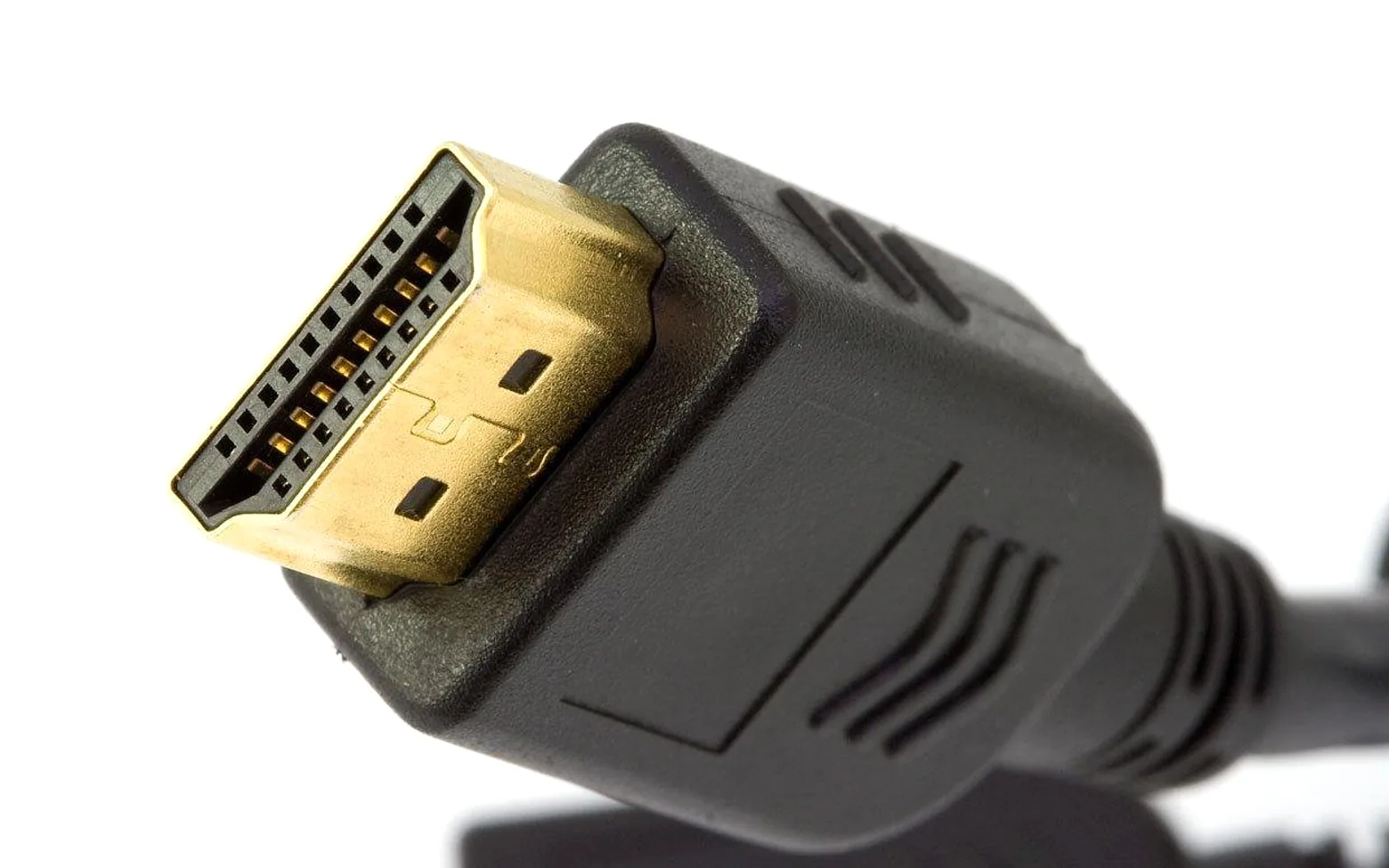
Unboxing a new streaming receiver can feel like the start of an afternoon of frustration. In reality, most IPTV boxes are designed to be running within minutes, as long as a few things are prepared in advance. The steps below follow the order most devices expect, with short fixes for the snags people tend to hit.
Before you plug anything in
Gather four things on the coffee table:
- the box, its power adapter and remote (with batteries fitted);
- an HDMI cable, ideally the one supplied;
- an Ethernet cable if the router is within reach, or the Wi-Fi name and password if not;
- the account details your provider sent, which may be a username and password, an activation code or a playlist address.
It also helps to run a quick speed test on a phone near the television, so you know whether the signal in that room is strong.
The setup in six steps
- Connect the cables. HDMI from the box to the television, power to the wall, and Ethernet to the router if you are using a wired link. A cable is usually more stable than wireless for live channels.
- Select the right input. Use the television remote to switch to the HDMI port you used. The box's welcome screen should appear.
- Choose language and region. Pick Spanish or your preferred language for menus, and set the time zone so the programme guide lines up correctly.
- Join the network. If you are on Wi-Fi, select your network and enter the password. Check that the status screen shows a working connection.
- Sign in to the service. Open the provider's app or the IPTV section of the settings and enter the credentials exactly as given, paying attention to capital letters.
- Load channels and the guide. The box downloads the channel list and electronic programme guide. Give it a minute, then open a live channel and an on-demand title to confirm both work.
Fine-tuning the picture and sound
Set the output resolution to match your television, and turn on automatic frame-rate matching if the option exists, which helps with smooth motion during sport. If dialogue sounds quiet, check whether the box is sending surround sound to a television that only has stereo speakers. Arrange favourite channels into a list so the remote takes you straight to what you watch most.
Quick fixes for common snags
| Problem | First thing to try |
|---|---|
| Login rejected | Re-enter details carefully; confirm the account is active. |
| Guide is empty | Check the time zone, then refresh the EPG in settings. |
| Buffering on live channels | Switch to Ethernet or move the router closer; restart both devices. |
| No picture | Try another HDMI port or cable and recheck the TV input. |
One last check
Opt for a service whose Spanish channels come through legitimate licensing deals, since such operators tend to offer clearer support, stable apps and regular updates. Once everything is in place, enable automatic software updates on the box so it keeps receiving fixes without further effort.